Installation
System requirements
- AutoCAD 2025 or later, or Civil 3D 2025 or later
- Windows 10 or later (64-bit)
Installing
- Download the R3Survey installer from whitecairn.com.au
- Close AutoCAD / Civil 3D before running the installer
- Run the installer and follow the prompts — you may see a Windows SmartScreen warning, click More info then Run anyway
- Open AutoCAD or Civil 3D — when prompted with an "Unverified Publisher" security dialog, click Always Load to allow the add-in to load
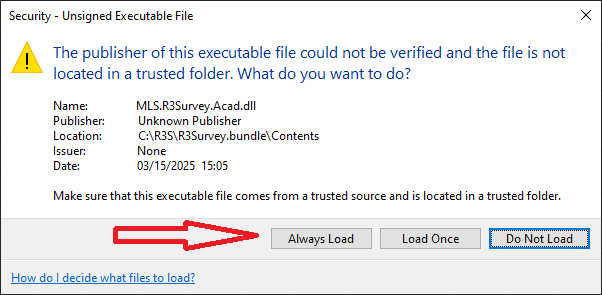
The installer places the add-in bundle in the standard AutoCAD plugin folder so it is loaded automatically on startup.
Licence
A trial licence is included with the installer — no activation is required to get started. Use R3ABOUT to view your licence status and expiry date.
Uninstalling
Use Add or Remove Programs in Windows Settings and remove R3Survey. This will remove the bundle files but will not remove any drawing data or settings files.
Updating
Use the R3UPDATE command from within AutoCAD or Civil 3D to check if a newer version is available. If an update exists, download and run the new installer — it will replace the existing installation.
Troubleshooting
R3Survey menu or ribbon not showing
If the R3 Survey menu or ribbon tab does not appear after installation or an update:
- Close AutoCAD / Civil 3D completely
- Open Add or Remove Programs in Windows Settings and uninstall R3Survey
- Open AutoCAD or Civil 3D — confirm the R3 Survey menu is gone, then close it again
- Reinstall R3Survey
- Open AutoCAD or Civil 3D — the menu and ribbon should now display correctly
This clears any cached menu customisation state that can become corrupted during updates. The open/close step after uninstalling is important — it forces AutoCAD to clean up the old menu references before the new installation loads.